Physical Address
304 North Cardinal St.
Dorchester Center, MA 02124
Physical Address
304 North Cardinal St.
Dorchester Center, MA 02124

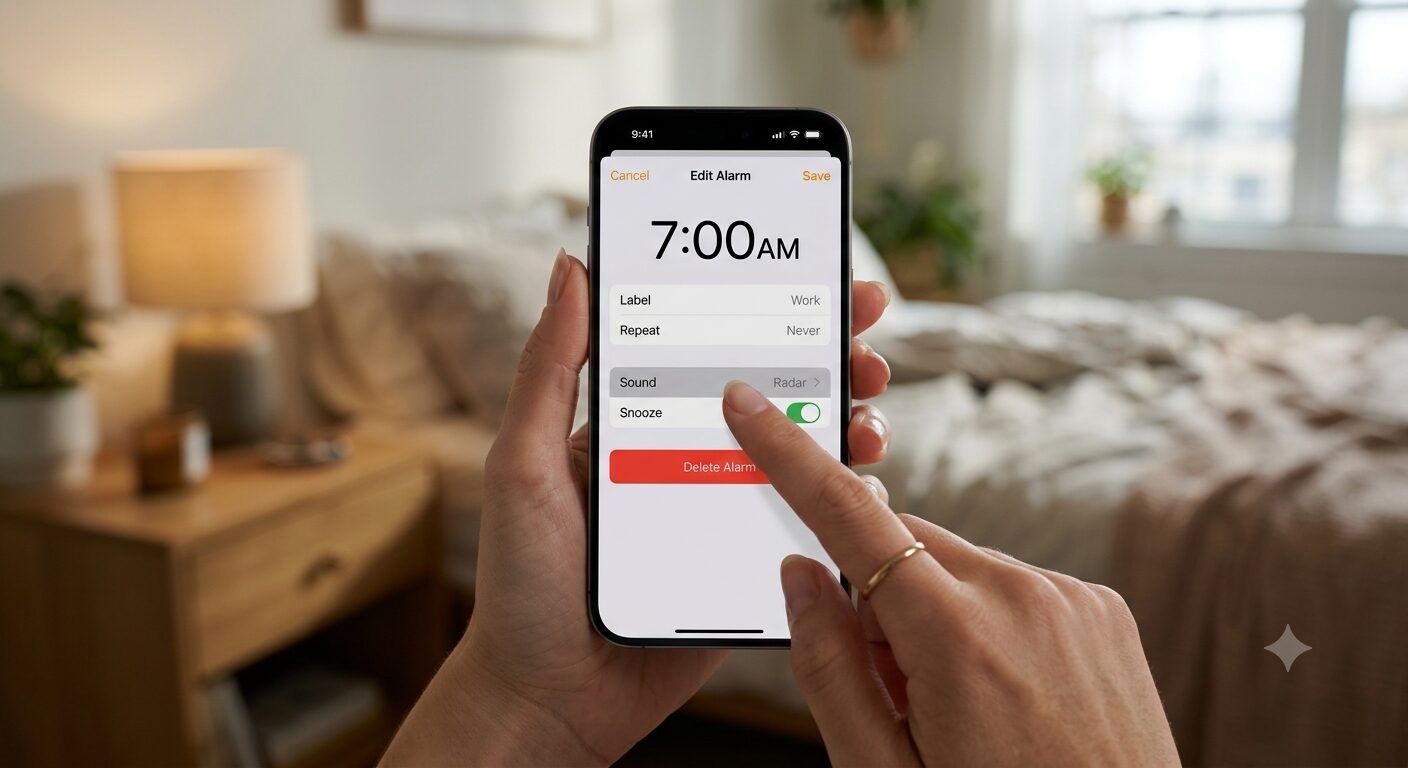
Waking up to the blaring, panic-inducing tone of the default iOS “Radar” alarm is a universally disliked experience. Learning exactly how to change the alarm sound on an iPhone is one of the quickest ways to improve your daily routine, set a better morning mood, and ensure you wake up peacefully and on time.
Whether you want to wake up to your favorite song, a soothing melody, or need a louder tone to wake you from a deep sleep, this comprehensive guide covers everything you need to know.
To change the default sound of an existing or new alarm on iOS, follow these quick steps:
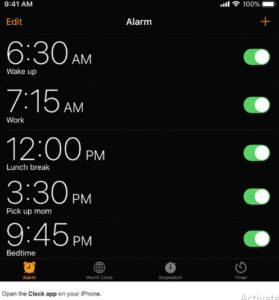
Launch the native Clock app on your iPhone’s home screen.
Tap the Alarm tab located at the bottom of the screen.
Tap Edit in the top-left corner and select the specific alarm you want to modify (or tap the “+” icon in the top-right to create a brand-new alarm).
Tap on Sound to open your iOS alarm audio options.
Scroll through the built-in ringtones, tap to preview them, ensure your choice has a checkmark next to it, then tap Back and hit Save.
Classic vs. Modern Tones: Classic iOS alarm tones (located at the bottom of the list) are sharp and piercing, whereas modern iOS tones offer softer, more melodic waking experiences.
If built-in Apple tones aren’t your style, you can easily use custom songs or tracks downloaded directly to your device.
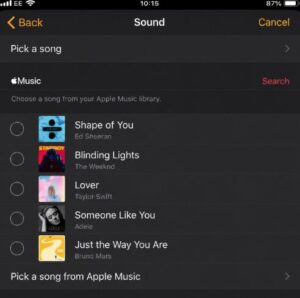
If you are an Apple Music subscriber, you can set any song from the platform as your wake-up call:
Inside your alarm’s Sound menu, navigate to the Songs category at the top.
Tap Pick a song to open your Apple Music library.
Search for a specific track, playlist, or downloaded song.
Tap the “+” (Plus) icon next to the track to bind it to your alarm.
Buying Tones or Creating Free Custom Alarms
iTunes Store: Tap Tone Store inside the Sound menu to purchase ringtones from artists, movies, or pop culture trends.
GarageBand Custom Alarm Method: To set a custom ringtone without iTunes for free, open the free Apple GarageBand app. Import any audio file, trim it down to a maximum of 30 seconds, and export it as a ringtone. The newly created track will automatically populate within your Clock app’s default sound list.
If your iPhone alarm sound is too quiet or keeps lowering automatically, it is usually tied to mixed media volume sliders or specific iOS tracking features.
Unlike playing videos on YouTube or listening to Spotify, your alarm volume is independent of the media volume slider found in the Control Center.
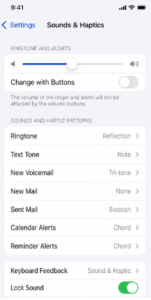
Crucial Tip: Disabling “Change with Buttons” ensures that adjusting your phone’s media volume later using the physical side buttons won’t accidentally silence your morning alarm alerts.
If your alarm starts loud but immediately drops to a whisper when you look at it, this is caused by an active iOS system feature called Attention Aware.
To stop your iPhone alarm from automatically fading out or getting quiet:
Navigate to Settings > Face ID & Passcode.
Enter your device passcode.
Scroll down and toggle OFF the Attention Aware Features switch.
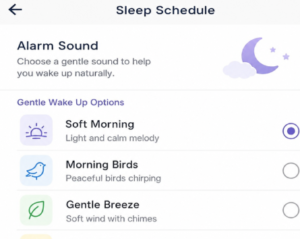
For health-conscious users tracking sleep data, Apple incorporates standalone sleep tools that provide exclusive, progressive audio tracks.
| Feature Element | Standard Clock App Alarms | Health App Sleep Schedule Alarms |
| Audio Style | Constant, sudden, or repetitive ringtones | Gentle, progressive ambient tracks (e.g., “Early Riser”, “Birdsong”) |
| Volume Behavior | Plays instantly at set volume | Progressively fades in to ease you out of sleep naturally |
| Haptic Tuning | Standard vibration patterns | Optimized, low-stress haptic pulses |
To activate these gentle wake-up options:
Open the Clock app.
Locate your Sleep | Wake Up alarm at the top and tap Change.
Scroll down to Sounds & Haptics under Alarm Options.
Select your preferred progressive ambient tone.
You can easily change the vibration pattern for an iPhone alarm to accompany or replace the sound. Inside the Sound menu of any specific alarm, tap Haptics (labeled Vibration on older iOS versions) at the very top. From here, you can select a native preset pattern like Staccato or Heartbeat, or tap out a completely unique rhythm by choosing Create New Vibration.
If your iPhone screen lights up or flashes for an alarm but plays zero audio, cross-check these three configurations immediately to resolve the issue:
Verify the Sound Selection: Ensure the specific alarm’s sound profile is not accidentally configured to “None”.
Isolate Bluetooth Devices: Check if your audio is routing to active Bluetooth speakers, AirPods, or headphones in another room. Toggle off Bluetooth via the Control Center to force audio back to the native iPhone speakers.
Check Alert Volume Slippage: Re-verify Settings > Sounds & Haptics to make sure the Ringtone and Alert Volume slider hasn’t been brought down to zero.
Note: The physical Silent/Mute switch located on the left edge of your iPhone does not mute or silence standard alarms set through the native Clock app.

I am Muhammad Ali the founder and lead voice behind Techgory, a platform born out of a deep fascination with everyday technology and digital tools. Instead of relying on dense, confusing jargon, I focus on heavy research, hands-on testing, and breaking down complex tech into simple, actionable steps that anyone can understand.