Physical Address
304 North Cardinal St.
Dorchester Center, MA 02124
Physical Address
304 North Cardinal St.
Dorchester Center, MA 02124

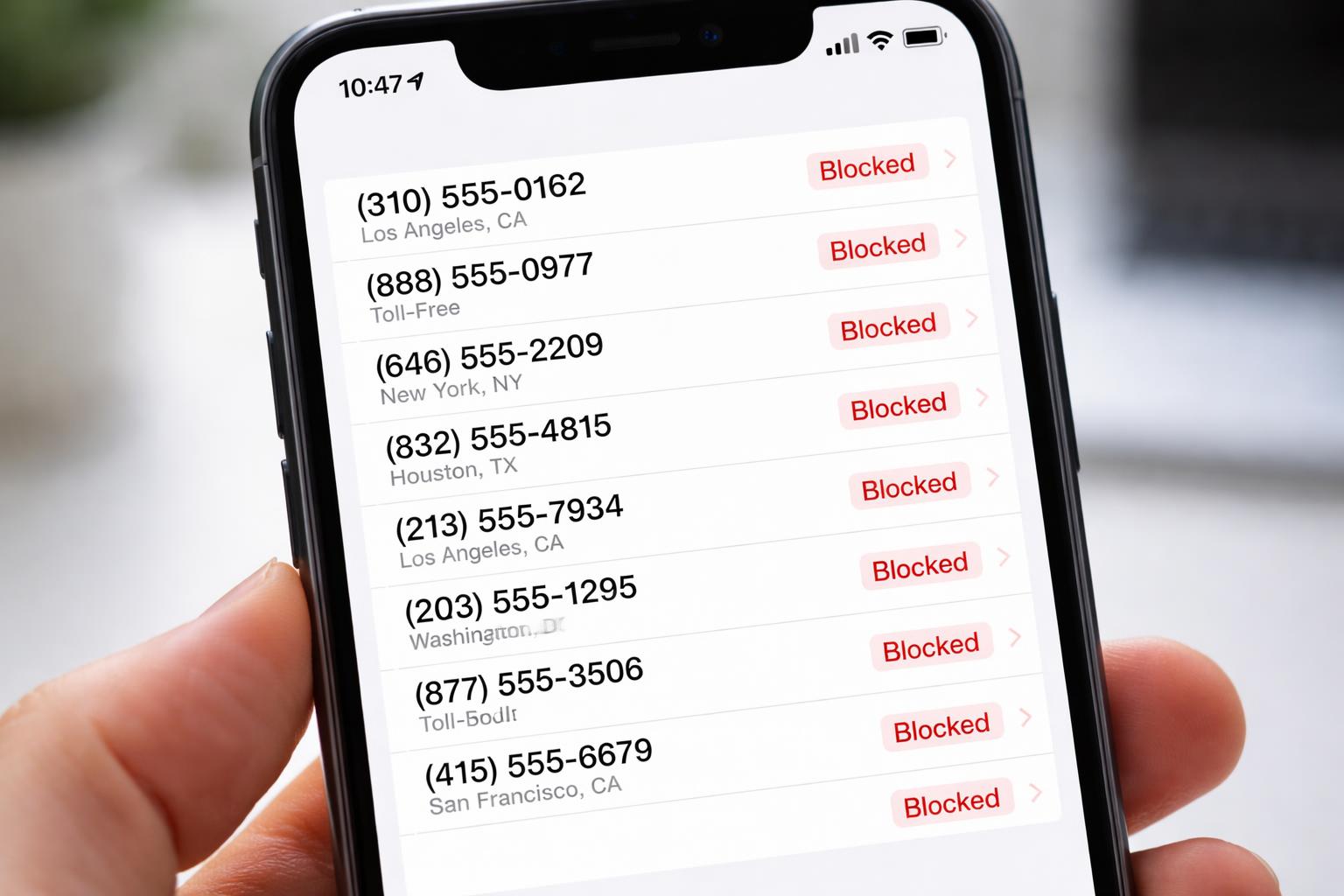
In our increasingly connected world, managing who can reach us on our iPhones has become paramount for digital well-being. Whether you’re dealing with persistent spam calls, an unwanted caller, or simply trying to maintain your privacy, the call blocking feature is essential. Understanding how to check blocked numbers on iPhone is a crucial skill that helps you gain total control over your communication and peace of mind. This comprehensive guide will walk you through every step.
Accessing your blocked list is straightforward once you know where to look within the iOS ecosystem. Based on native Apple ecosystem architecture, blocked numbers are consolidated in a central location within your iPhone’s settings, making it easy to manage your call blocking preferences. This feature ensures that once you have blocked someone, their attempts to communicate with you are effectively silenced, adding a necessary layer of control.
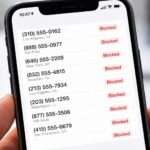
To view blocked numbers on your iPhone, you’ll need to navigate through the Settings app to find blocked numbers easily. This list includes anyone you’ve blocked, whether they are in your contacts list or an unknown caller, providing a comprehensive overview of your call blocking category. This centralized approach is incredibly helpful for managing all your blocked contacts in one convenient place, making it easy to see a list of numbers you’ve previously blocked and quickly remove blocked numbers if desired.
While the primary method for managing blocked contacts is through the Phone settings, you can also access and manage this list through other applications. This is particularly useful if you remember blocking someone specifically due to their text messages or FaceTime calls. To do this, you can navigate through the settings of:
Messages
FaceTime
For example, to access it via Messages, open the Settings app, scroll down, and tap on “Messages”. From there, scroll further down until you see “Blocked Contacts” under the “SMS/MMS” section to find blocked numbers. Tapping on this option will display your full list of blocked numbers.
Alternatively, for FaceTime, simply go back to the main Settings screen, scroll, and tap on “FaceTime”. Similar to Messages, you’ll find the “Blocked Contacts” option which, when tapped, reveals the same comprehensive list of individuals you’ve blocked across calls, messages, and FaceTime. This unified blocked list ensures consistency across your communication apps, managing all numbers and contacts you wish to prevent from reaching you, allowing you to check your blocked numbers easily.
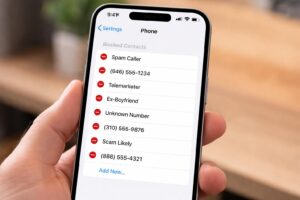
There might come a time when you need to unblock a number on your iPhone, perhaps due to a misunderstanding, a mistake, or a change in circumstances. Unblocking a contact is just as simple as blocking them, and it restores their ability to call or send messages to your device. This feature ensures that you have complete control over your communication preferences, allowing you to easily reverse a previous block from your list of blocked contacts. To unblock a number, access your blocked list through the Phone settings, as detailed previously, to ensure you can manage your call blocking effectively.
Once you are on the “Blocked Contacts” screen, you will see a list of numbers and contacts you have previously blocked. To unblock a specific contact, follow these simple steps:
Locate the number you want to unblock on the list and swipe left on that contact or number.
An “Unblock” button will appear. Tap this button, and the contact will be instantly removed from your blocked numbers list, allowing them to send you messages and calls again.
This action instantly restores communication, making the unblocked contact able to reach you once more.
When you choose to unblock a number or contact on your iPhone, several key changes occur, primarily focused on restoring communication channels. Once unblocked, that contact will be able to call your phone again, and any text messages or FaceTime calls they send will be received normally, rather than being silently discarded from the list of blocked contacts. This means their calls will ring through, and their messages will appear in your Messages app, as if they were never blocked on your blocked numbers list.
It’s important to understand that unblocking a contact does not retroactively deliver any calls or messages that were attempted while they were blocked. Any communication attempts made during the blocked period are permanently lost and will not appear on your device after the unblock, effectively saving you from unwanted distractions. This is a crucial detail to remember, as it ensures you won’t be suddenly flooded with old notifications. The primary purpose of the block feature is to prevent future unwanted communication, not to store it for later.
Blocking a phone number on your iPhone is an effective way to achieve total peace of mind, especially when dealing with unwanted calls, spam, or a persistent caller that you need to manage effectively. Whether it’s an unknown number repeatedly disturbing you or someone from your contacts list you no longer wish to hear from, the block feature ensures their calls go straight to voicemail and their messages are not delivered. This proactive measure is a fundamental tool for managing your digital boundaries.
To block a number, there are several straightforward methods depending on whether the call is incoming, recent, or if the number is already in your contacts. For an incoming call, you can tap the red “End” button, then quickly access recent calls and block the number. Alternatively, if it’s a number in your call history or messages, you can block it by:
Tapping the “i” icon next to the number to help you label the contact for easier identification in your blocked numbers list.
Scrolling down and selecting “Block this Caller”.
This action will add them to your blocked numbers list, preventing future communication.
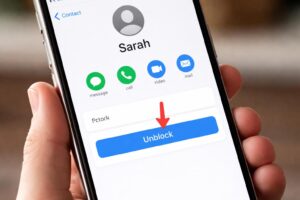
For those seeking a more comprehensive solution to silence unwanted calls and spam, your iPhone offers a valuable feature designed to block unknown callers automatically. This can significantly reduce interruptions from telemarketers, robocalls, and other unsolicited communication, granting you greater control over your phone usage. This setting specifically prevents numbers not in your contacts list from ringing your phone.
To enable this feature, simply tap the corner button in the Settings app. Navigate to the Settings app, scroll down, and tap on “Phone” to access the call blocking and identification options. Within the Phone settings, look for the “Silence Unknown Callers” option. Tap to toggle this feature on.
When activated, calls from numbers that are not in your contacts, recent outgoing calls, or Siri Suggestions will go straight to voicemail. While they won’t ring your phone, these calls will still appear in your Recents list and you’ll receive a voicemail notification, ensuring you don’t miss genuinely important unknown numbers.
A common concern for users is whether a blocked number can detect if you’ve viewed their contact information or if you’ve opened a message they attempted to send. Based on native Apple ecosystem architecture, the answer is unequivocally no. When you block someone on your iPhone, the system is designed to provide you with complete privacy and peace of mind, acting as an additional layer of protection against unwanted communication.
The individual whose number you have blocked will not receive any notification or indication that you have viewed their contact details, accessed their messages, or even interacted with any potential voicemail they might leave. The blocking feature operates solely on your device, ensuring that you can manage your blocked contacts and view your blocked numbers without any fear of alerting the individual.
Blocking someone on your iPhone primarily affects communication directly tied to your device, such as phone calls, iMessages, and FaceTime calls. When you block a contact or an unknown number, this action is localized to your iPhone and is synchronized across your Apple devices that share the same Apple ID, such as an iPad or Mac, for calls and messages. However, this blocking mechanism does not extend to iCloud services in the broader sense.
This means that while a blocked contact cannot call or text you, they might still be able to interact with you via other non-phone related iCloud services if you have them enabled and shared with that individual. For example, if you have previously shared an iCloud Photo Album or used iCloud Mail with someone you later block, they may still have access unless you manually remove them from its sharing list. The block is designed for communication privacy, not a universal block across all Apple ecosystem features.

I am Muhammad Ali the founder and lead voice behind Techgory, a platform born out of a deep fascination with everyday technology and digital tools. Instead of relying on dense, confusing jargon, I focus on heavy research, hands-on testing, and breaking down complex tech into simple, actionable steps that anyone can understand.
Comments are closed.

[…] How to Delete Emoji Stickers on iPhone […]
[…] masterpieces come at a cost: massive file sizes. If you are struggling with this issue, learning how to compress videos on iPhone is the fastest way to quickly reduce file sizes for email, WhatsApp, or to reclaim your precious […]