Physical Address
304 North Cardinal St.
Dorchester Center, MA 02124
Physical Address
304 North Cardinal St.
Dorchester Center, MA 02124

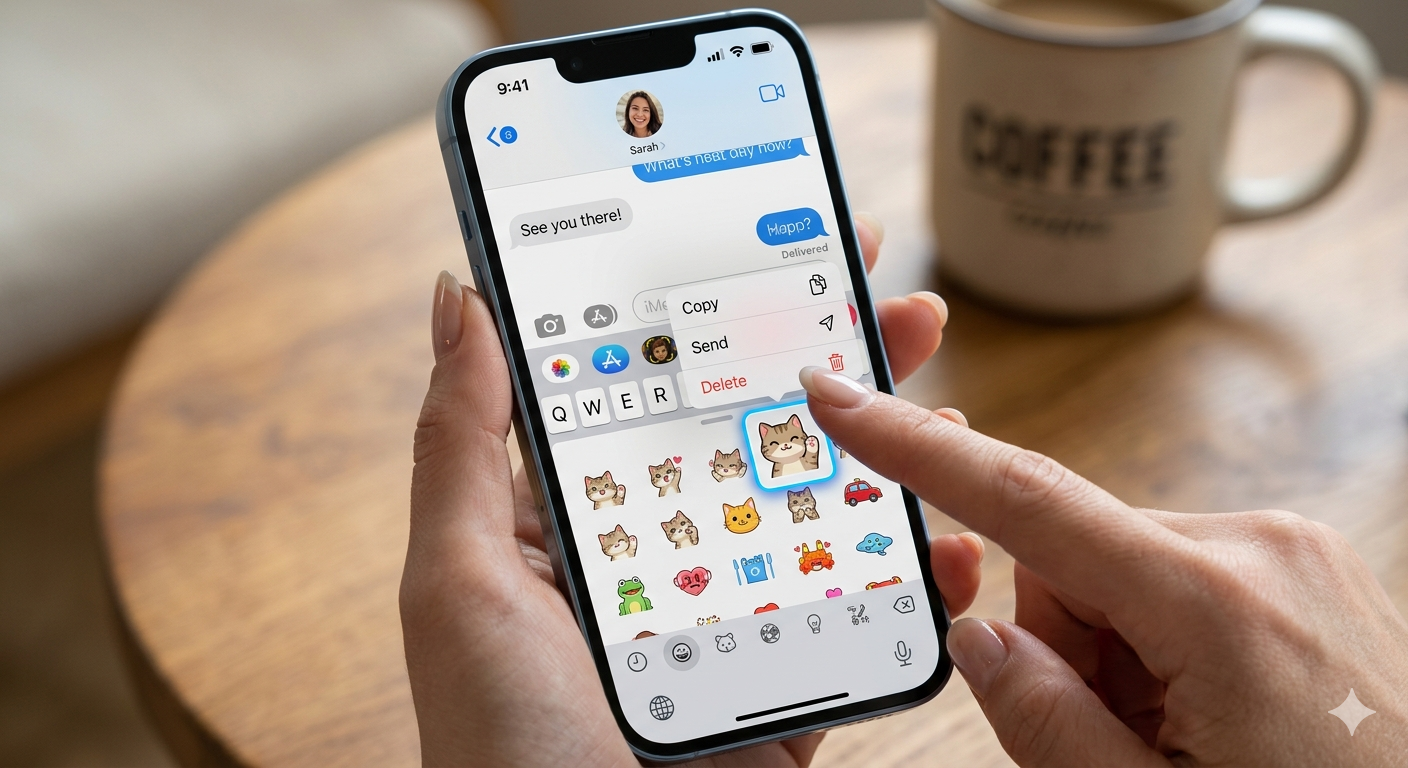
Delete Stickers from your iPhone to maintain an efficient and organized collection of your stickers. Learning how to delete stickers on iPhone ensures your digital workspace stays clean, especially since using stickers on your iPhone is such a fun way to communicate with your friends and family.
Create some cool stickers featuring your pets, some animated stickers that look so much like you, or even funny characters to entertain everyone around you. But with time, your stickers might get out of hand and become disorganized.
For that reason, it is easy to delete individual custom stickers, third-party packs, and hide emojis using your iOS settings.
To delete stickers on iPhone keyboard in iOS 17 or iOS 18, press your sticker pack in your chat, and select delete from there.
Here is how to delete stickers on iPhone keyboard:
Open your chat: To begin the process of deletion, start by opening the Messages app in your iPhone and tap on your conversation thread.
Tap “+” icon and select stickers: Tap the “+ ” sign next to your text box to open the sticker tray.
Hold the sticker you wish to delete and select “delete”: Select the created sticker that you wish to delete and press and hold your finger on it.
Press on delete to remove the sticker from the sticker pack: A pop-up window should appear right above your sticker. Simply select Delete to delete it.
You may use the exact same method each time you wish to know how to delete saved stickers on your iPhone. It only takes a few seconds to delete those that you have created by accident.
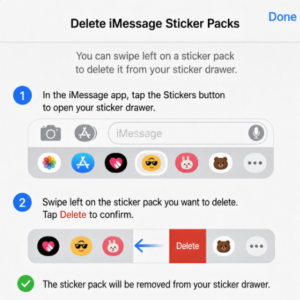
Sometimes the clutter is not on your keyboard alone but in your messages too. Managing message details helps you keep your chats tidy and make it simple to delete stickers. Here is how to delete stickers on iPhone messages:
Find the Sticker that you wish to delete: In your Messages app go to the message conversation where you have added the sticker on top of a text.
Open message details: Tap and hold your finger on the text bubble containing the unwanted sticker.
Select sticker details: A pop-up window should show on your screen, and from there, select “Sticker Details.”
Delete the sticker: From the list of stickers displayed, simply swipe to the left on the one you want to delete and press the red “Delete” button.
This is the best way to delete sent stickers on your iPhone in case you have accidentally dropped a large sticker on your text.
If you want to delete the recently used stickers, remember that Apple updates the list automatically. There is nothing that you have to do as long as you send new stickers.
To delete emoji stickers that have been used to cover text, use the same step-by-step bubble details menu as a regular sticker. Apple allows you to peel and stick regular emojis as stickers, which sometimes blocks texts. All you have to do is tap and hold the chat bubble, check the details, and swipe left to erase your emoji sticker.
In case you would like to know how to delete emoji stickers on your iPhone from your keyboard view, you can disable the option through your device’s system settings.
Open your settings: Go to your iPhone settings app.
Choose “Keyboards”: Under General, tap on Keyboard.
Toggle off “emoji Stickers”: Move to the very bottom of the screen and toggle off the switch. This keeps the stickers away from clogging your emoji keyboard view.
Managing Stickers on Different iPhone Models (iPhone 13 and Newer)
Managing or deleting stickers on iPhone 15 and newer uses the same iOS 17 or iOS 18 software procedure as any other iPhone device. Many people tend to ask if the procedure is different based on the phone model that you own. If you wish to learn how to delete stickers on iPhone 15, just smile because the interface steps are uniform.
As long as your iPhone 15 and newer is running on a compatible iOS version, all your buttons will be in the same places. You can easily manage your sticker packs and cutouts without any difficulty.
To recover deleted stickers on your iPhone, you must create the stickers once again from your original photo since iOS doesn’t have a trash bin folder for deleted stickers. After deleting a custom sticker, it gets permanently deleted from your iCloud keyboard cache.
But you can quickly recreate the Sticker from your original picture if you still have it stored in your camera roll. Just launch your Photos app, press your finger on the subject of your photo, and add sticker!

I am Muhammad Ali the founder and lead voice behind Techgory, a platform born out of a deep fascination with everyday technology and digital tools. Instead of relying on dense, confusing jargon, I focus on heavy research, hands-on testing, and breaking down complex tech into simple, actionable steps that anyone can understand.
Comments are closed.

[…] Why Clear App Data and Cache? […]
[…] interest in AI tools and its actual ability to handle the associated risks. While investments in generative AI capabilities continue to rise, organizations frequently lack the formal structures needed to manage […]