Physical Address
304 North Cardinal St.
Dorchester Center, MA 02124
Physical Address
304 North Cardinal St.
Dorchester Center, MA 02124

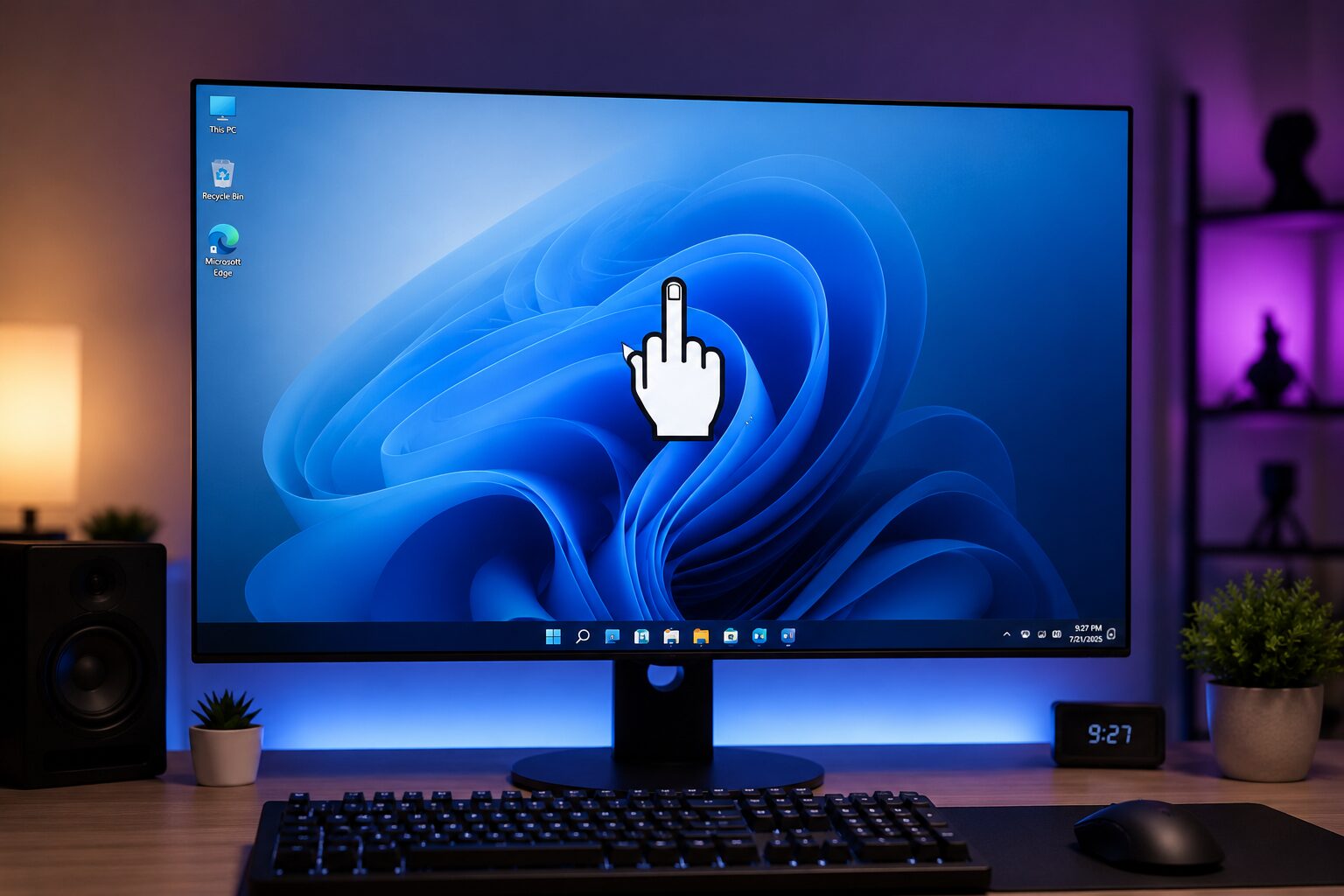
You’ve probably already swapped your Windows 11 wallpaper, tweaked your Start menu, and picked out a theme that actually feels like you but your mouse pointer is still the same boring arrow it’s always been. What most people don’t realize is how easy it is to replace that pointer with something that actually has personality, middle finger included. In this guide, we’ll walk through where to find a middle finger mouse cursor safely, how to install it on Windows 11, and how to build your own from scratch.
Custom mouse pointer designs on Windows 11 use .cur (static) or .ani (animated) file formats to replace the default pointer scheme.
A middle finger cursor is an edgy, bold, and fun novelty pointer design, typically downloaded as a pre-made library pack or converted from an image.
Windows 11 changed the customization layout, so cursor installation steps differ slightly from older Windows 10 tutorials.
Free tools like RealWorld Cursor Editor let anyone create a custom .cur or .ani file from an image with zero design experience.
Downloading cursor packs from an unverified website carries a real malware risk, so checking the source matters before you hit download.
Installed cursors are applied system-wide through the Windows setting menu: Settings > Bluetooth & devices > Mouse > Additional mouse settings > Pointers.
Custom cursor schemes give you full control they can be renamed, saved, and switched back to default at any time with no permanent changes to your computer.
A custom cursor is a replacement mouse pointer file, saved as .cur for static designs or .ani for animated ones, that overrides the Windows default arrow. Instead of the plain white arrow you’ve seen since you first turned on a computer, a customization pack swaps in a different shape, color, or animation for every pointer state clicking, loading, resizing, and so on. Some packs also include an .inf file, which is a small installer script that registers the whole scheme with Windows in one step instead of loading each icon manually.
A middle finger cursor is a novelty pointer design, typically distributed as a downloadable pack or created by converting a custom image into a .cur file. It’s used mostly as a fun, edgy, and bold way to express your style or play a joke on a friend. It’s the ultimate “troll” cursor the kind of thing you’d install to prank a sibling, add personality to a streaming overlay, or just get a laugh out of your own digital desktop. It behaves exactly like any other mouse pointer once installed; the only difference is the artwork.
A .cur file is a single, static image used for one pointer state, like the default arrow. An .ani file, by contrast, stores a short animation loop think of the spinning “loading” window and is used when you want a pointer that moves or changes shape on its own. Most middle finger cursor packs use .cur files for simplicity, though a handful of joke packs add an .ani version for a “flipping” animation effect.
People use custom cursors mainly for customization, humor, and content creation, not just function. It is a unique way to personalize your screen. Over 65% of gamers say personalization matters to how they set up their PC (Source: Global Growth Insights, 2025). That same instinct that drives RGB keyboards and themed wallpapers extends naturally to something as small as a mouse pointer.
For example, streamers often swap in a novelty middle finger mouse cursor specifically because it reads clearly on camera and gets a reaction from viewers during gameplay. Others use it purely as a desktop prank, sneaking it onto a friend’s PC for a quick laugh. And for many, choosing a bold middle finger cursor is simply an edgy extension of a broader habit to express themselves online, joining custom icon packs and themed desktop schemes.
Downloading a middle finger mouse cursor pack is generally safe, but only if you use a trusted website that scans and vets uploads before distribution. Pointer files downloaded from unverified third-party sources carry a higher risk of bundled malware compared to sites that vet uploaded files.
That risk is not hypothetical: security researchers at AV-TEST log more than 450,000 new malware and potentially unwanted program samples every single day, and free downloads are one of the most common delivery paths for unwanted software.
Look for a website that displays a virus-scan badge or security report next to each download button, rather than a bare link with no file details.
Before installing anything, always check that the file extension is genuinely .cur, .ani, or .zip (and never .exe). An executable disguised as an icon or pointer pack is a major red flag.
Avoid any website or library that forces you through multiple redirect pages or hides file sizes before allowing you to download.
You change your mouse pointer on Windows 11 through the modern setting menu, not the old Control Panel shortcut that most older Windows 10 guides still reference. Microsoft moved these control features into the Personalization menu for Windows 11.
Open Settings > Bluetooth & devices > Mouse > Additional mouse settings.
In the Mouse Properties window, click the Pointers tab.
Select Browse, then locate the .cur or .ani files from your downloaded middle finger cursor folder.
Assign each pointer state (Normal Select, Busy, Text Select, etc.) individually, or select a custom option to load a full .inf scheme at once.
Click Apply, then OK to confirm the change across your computer.
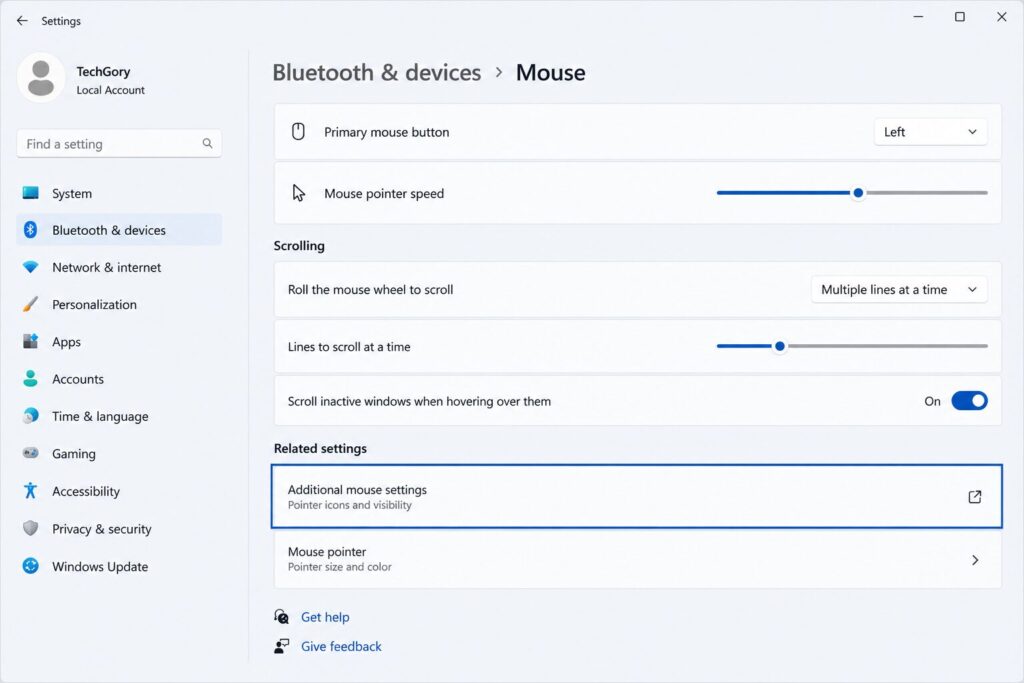
At the same time, the classic Control Panel > Mouse applet still works if you type “mouse” into the Start menu search bar. This route opens the same Pointers tab directly within the window, which can be faster if you’ve already got your middle finger mouse cursor downloaded and just want to skip extra clicks.
Yes, you can create a custom pointer without any design skills by converting an existing image into a .cur or .ani file using free tools. You don’t need to draw anything from scratch; a clear PNG or JPG of a hand icon is enough to start building your design.
Find an Image: Select a high-contrast PNG image or hand icon with a transparent background.
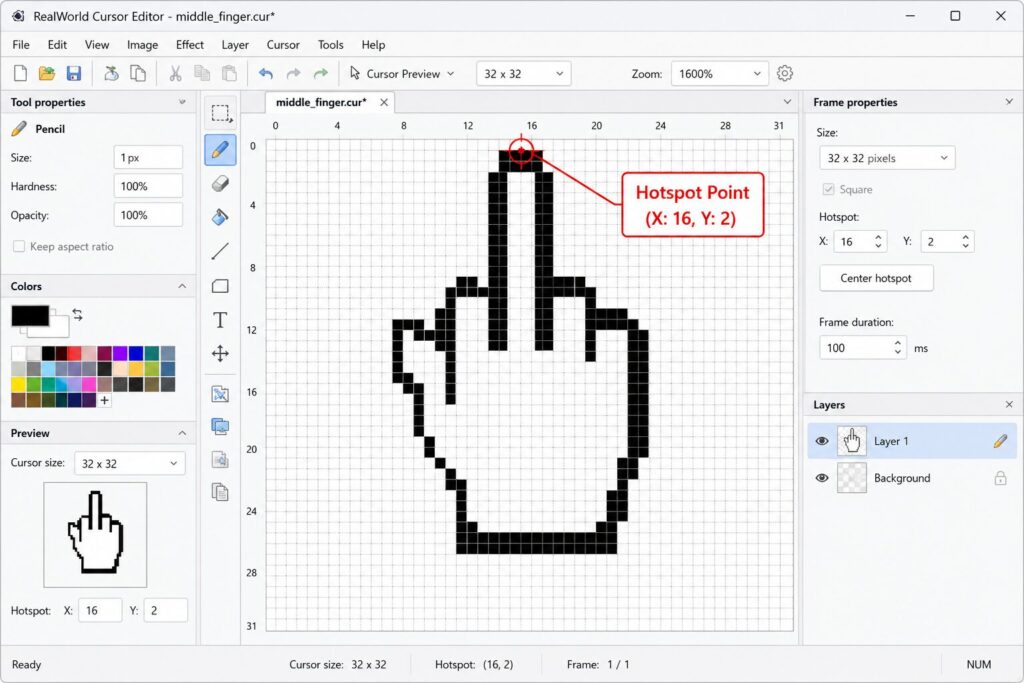
Open the Editor: RealWorld Cursor Editor is one of the most reliable free tools to create custom files. Open your image in the software.
Set the Hotspot: Adjust the “hotspot” the exact pixel on the middle finger design that registers a click (usually the tip of the finger).
Save and Export: Save your new custom file as a .cur or .ani format onto your computer, ready to apply in your system settings.
Your custom middle finger cursor usually reverts after a restart because it was applied as a one-time option instead of saved as a named scheme. In addition, Windows resets individual pointer assignments on sign-out more often than it resets a saved scheme.
Save it as a scheme: After assigning your middle finger mouse cursor, click Save As in the Pointers tab, give it a name, and click Apply.
Check for conflicting software: Some game launchers, browser extensions, or utility programs override mouse settings on launch close them and reapply if needed.
Reinstall the .inf file: If your download included an .inf installer, right-click it and select Install again to re-register the design with Windows.
A properly formatted .cur file has no measurable effect on system performance, as it is a tiny static image that Windows is built to render natively. An oversized or poorly optimized .ani animation can occasionally cause minor stutter on very old hardware, but this is extremely rare on any modern computer built to run Windows 11.
If you ever want to switch back from your edgy middle finger mouse cursor to the standard setup, open the same Pointers tab in Mouse Properties. Select Windows Default (system scheme) from the drop-down menu, then click Apply. You can regain full control and revert your settings at any time without making permanent changes to your system.
The right resource depends on whether you want to download a ready-made middle finger cursor or create your own from scratch.
| Tool / Resource | Best For | Cost | Formats Supported |
| RealWorld Cursor Editor | Building or editing a custom middle finger design from an image | Free | .cur, .ani |
| Online Converters | Quick, one-off image conversions with no software install | Free | .cur, .ani |
| Vetted Cursor Libraries | Finding a ready-made middle finger mouse cursor or novelty icon pack | Free / Some Paid | .cur, .ani, .inf |
| Windows 11 Pointers Tab | Applying, saving, and taking control of your mouse schemes | Built-in | .cur, .ani |
Swapping to a middle finger mouse cursor is a fun starting point, but it’s just one piece of a personalized digital setup. Once your mouse pointer is sorted, the natural next step is exploring a matching library of custom icon sets, adjusting your browser themes, and choosing a coordinated background so your entire desktop feels intentional.
Swapping your default arrow for a middle finger cursor takes just a few minutes once you know where to look. Whether you choose to download a pre-made middle finger mouse cursor from a safe website or create your own custom design from an image, you now have full control over your desktop’s look. Configure your settings today and enjoy a truly unique way to personalize your computer!

I am Muhammad Ali the founder and lead voice behind Techgory, a platform born out of a deep fascination with everyday technology and digital tools. Instead of relying on dense, confusing jargon, I focus on heavy research, hands-on testing, and breaking down complex tech into simple, actionable steps that anyone can understand.