Physical Address
304 North Cardinal St.
Dorchester Center, MA 02124
Physical Address
304 North Cardinal St.
Dorchester Center, MA 02124

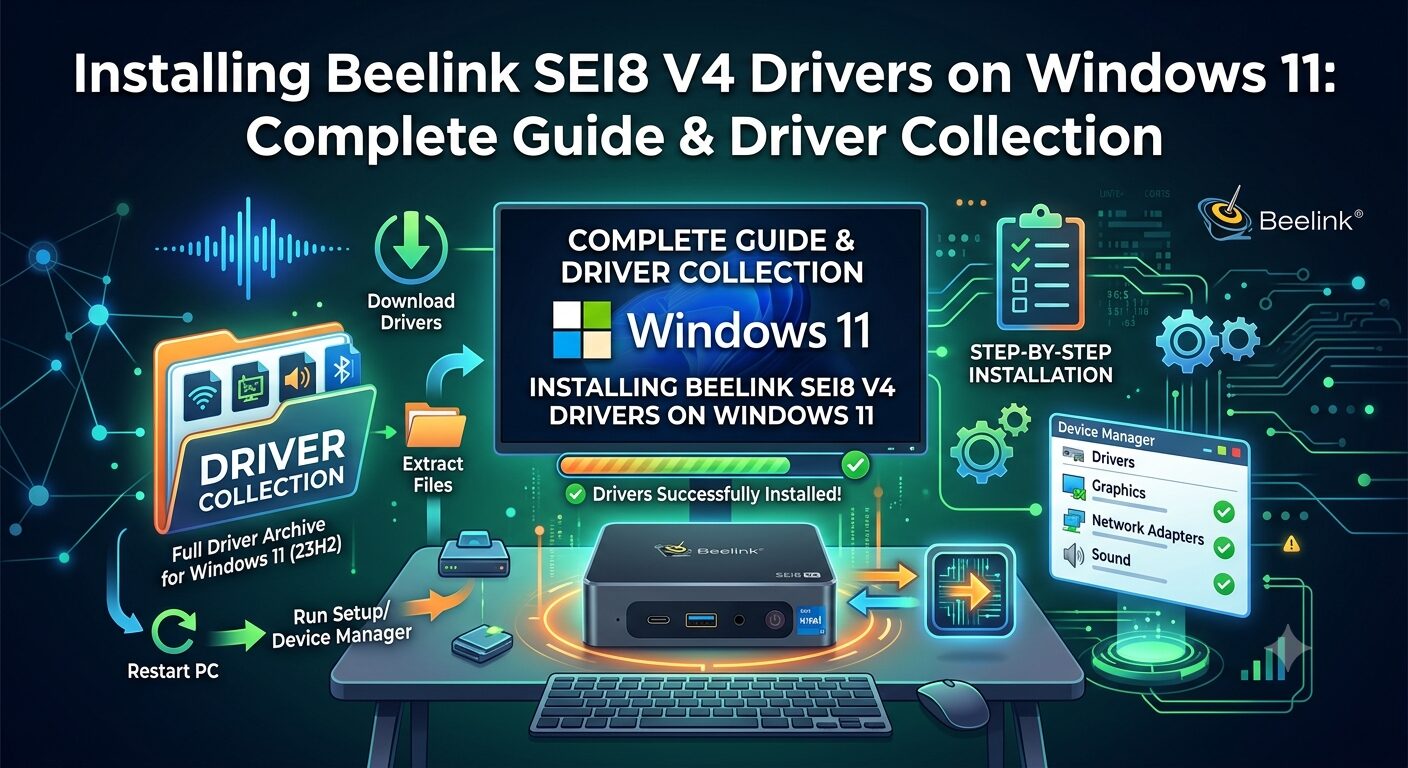
Installing drivers on a Beelink mini PC requires verifying your exact hardware model first and using verified installation channels to maintain system stability. The Beelink SEI8 V4 (or SEi8v4-G) requires specific Intel platform, graphics, audio, and network drivers on Windows 11 to prevent hardware conflicts and ensure full functionality.
Before downloading any driver package, confirm that your system is an SEI8 V4 and not an older SEi8, SEi10, SEi12, or an AMD-based model (such as the Beelink SER8 or SER5). Check the bottom label of your mini PC, your original purchase receipt, or your Windows system details to confirm your hardware variant.
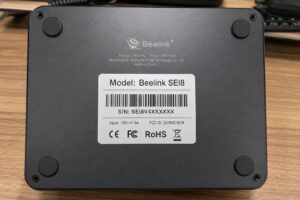
To verify your exact hardware details before downloading drivers or seeking help on the official Beelink forum, check your system information directly within Windows. Official support routinely advises users to confirm their model details and serial numbers before downloading manual driver packages or flashing BIOS files to avoid system instability.
Follow these steps to locate your system hardware specifications:
Press Windows + R to open the Run dialog box.
Type msinfo32 and press Enter to open System Information.
Note the System Model, BIOS Version/Date, and Processor (e.g., Intel Core i5-8279U or an AMD chipset like the 8845HS found on newer mini PCs).
Open Device Manager and check for any devices marked with a yellow warning icon.
Before installing any Windows 11 driver files, gather your system details, prepare a backup, and ensure you have an offline transfer method ready in case network drivers are missing. Having these items ready prevents system recovery issues if an installation fails.
Ensure you have the following prerequisites ready:
A working Windows 11 system with administrator privileges.
A stable internet connection (use an Ethernet cable if Wi-Fi drivers are missing).
The unit’s serial number, located on the bottom label of the mini PC.
A USB flash drive to transfer files if network drivers are missing.
A full system backup and a Microsoft Windows system restore point.
How to create a restore point: Search for “Create a restore point” in the Start menu, select your main drive, and click Create.
Yes, the Beelink SEI8 V4 is fully compatible with Windows 11 because its Intel Core i5-8279U processor is explicitly included on Microsoft’s supported processor list. If Windows 11 setup reports compatibility issues during a clean install or upgrade, enable TPM 2.0 and Secure Boot within your system’s BIOS settings.
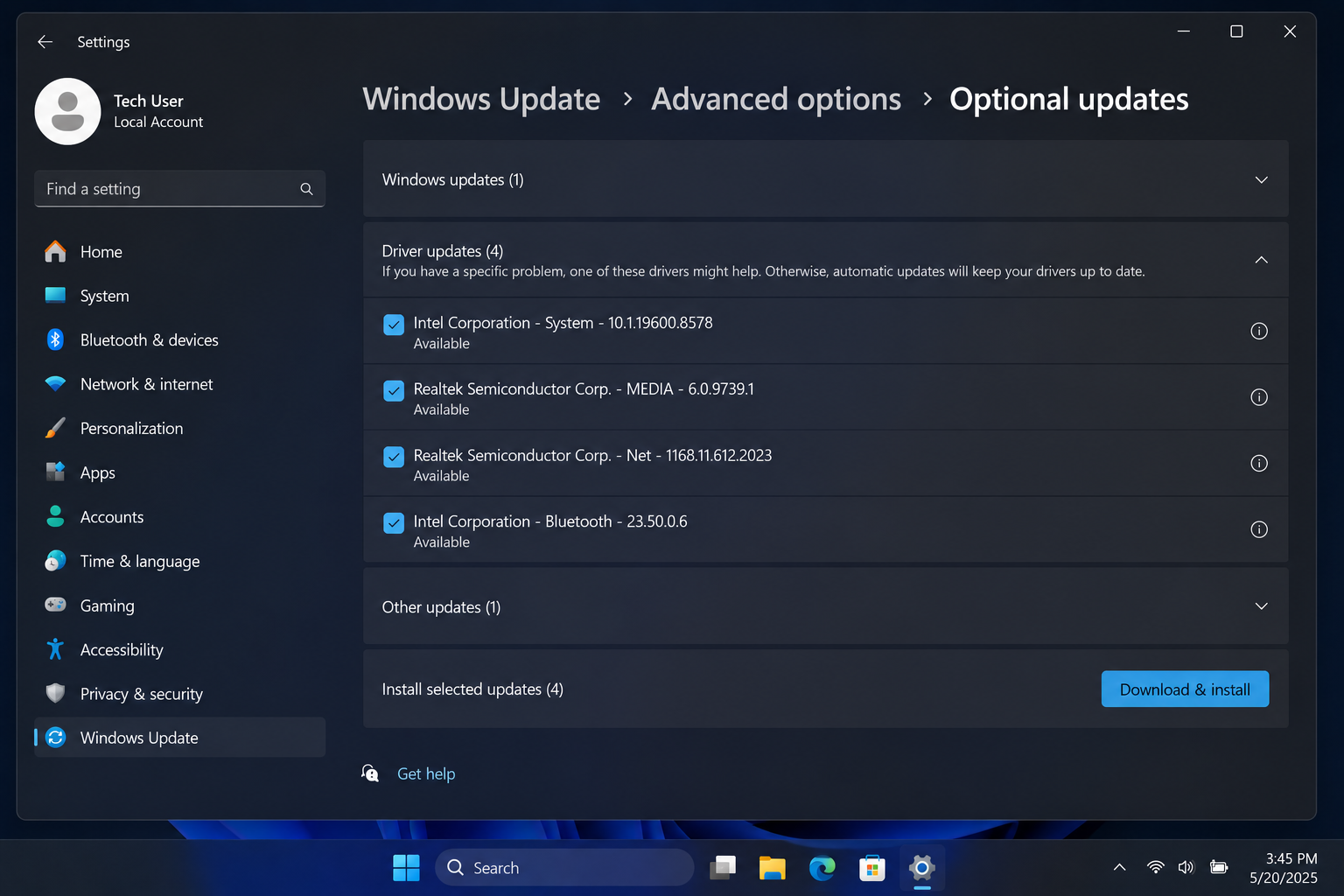
Using Windows Update is the safest and most automated method to install and update hardware drivers on your Beelink mini PC. Microsoft automatically tests and distributes verified hardware drivers through this channel to ensure system stability.
To update drivers using Windows Update, follow these steps:
Connect your Beelink mini PC to the internet.
Open Settings > Windows Update.
Click Check for updates and allow the system to download available patches.
Go to Advanced options > Optional updates.
Expand Driver updates (if available).
Select any listed Intel, Realtek, AMD, audio, or network drivers, then click Download & install.
Restart your computer.
If Device Manager displays no yellow warning icons and all features—including display output, Wi-Fi, and audio—are operating correctly, no manual driver installations are required.
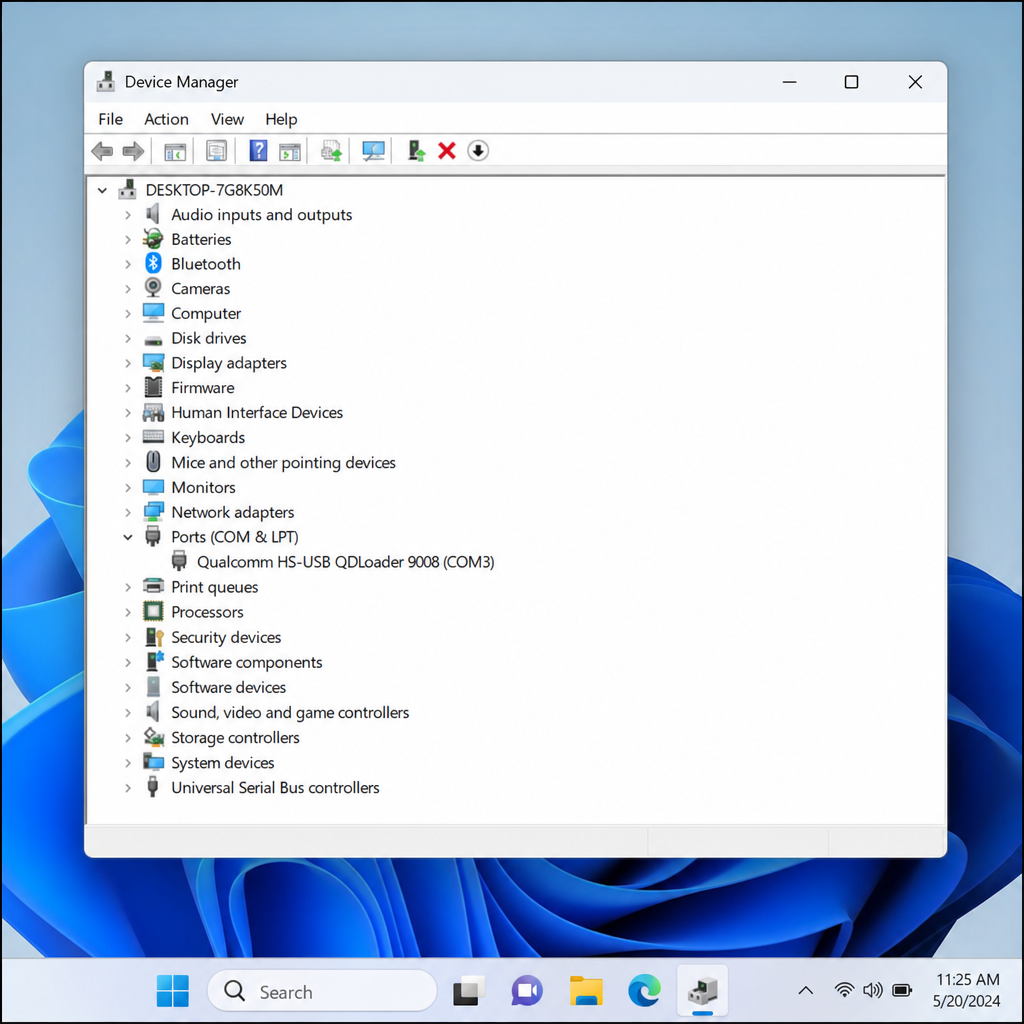
You can update an individual device directly through Device Manager by prompting Windows to search for software or by using the device’s Hardware ID to identify missing components. This targeted approach fixes specific missing drivers without affecting other working hardware.
To update an individual device, follow these steps:
Right-click the Start menu and select Device Manager.
Expand Other devices or Unknown device.
Right-click the affected item and select Update driver.
Choose Search automatically for drivers.
If Microsoft Windows cannot locate a driver automatically, locate the device’s Hardware ID to identify the specific component:
Right-click the device in Device Manager and select Properties.
Navigate to the Details tab.
Select Hardware Ids from the dropdown menu and copy the top character string.
Use this string solely to identify whether the component belongs to Intel, Realtek, or AMD (such as an AMD audio coprocessor or integrated chip on models like the Beelink SER8). Do not download random driver files from unverified file-sharing sites.
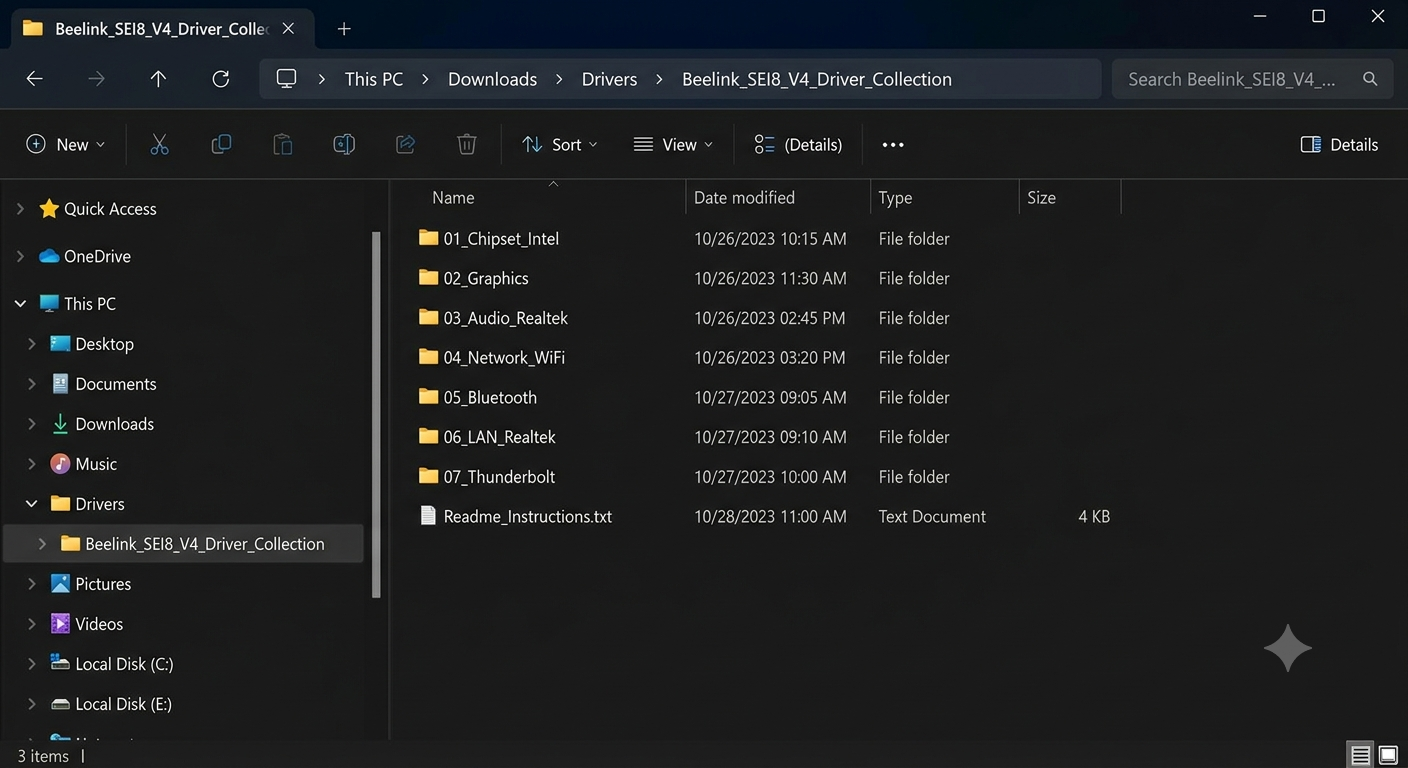
Downloading the official Beelink driver collection package directly from the manufacturer provides all necessary proprietary drivers in one dedicated archive when standard Windows updates fail. Installing these packages in a structured order prevents dependencies and hardware conflicts.
Follow these steps to obtain and extract the official package:
Visit the official Beelink support site or community forum.
Search for your specific mini PC model (e.g., SEI8 V4 or Beelink SER8).
Download the official ZIP archive for Windows 11.
Extract the compressed file to a dedicated folder on your desktop.
To prevent system errors and dependency failures, install your extracted drivers in the following sequence:
AMD chipset or Intel platform drivers
Serial I/O and Management Engine drivers
Integrated Graphics driver (prevents graphical glitches and low FPS in light games)
Audio drivers (including Realtek or AMD audio coprocessor drivers)
Network drivers (Ethernet, Wi-Fi, and Bluetooth)
Card readers and peripheral controllers
Restart your computer whenever prompted by an installer, and perform a final restart after applying all driver packages.
You can manually install drivers contained in folders with .inf files by pointing Device Manager directly to the unzipped driver directory. This method applies driver packages that lack an executable (.exe) installer setup program.
Follow these steps to install an .inf driver file manually:
Open Device Manager.
Right-click the target device and select Update driver.
Choose Browse my computer for drivers.
Click Browse and select your extracted Beelink driver folder.
Ensure the Include subfolders checkbox is marked, then click Next.
Windows will automatically detect, match, and apply the compatible driver software from that directory.
Troubleshooting Beelink driver issues requires targeting the specific missing driver component—such as graphics, audio, or network interfaces—or using Hardware IDs to resolve persistent unknown devices. Identifying the exact symptom allows you to apply the precise driver fix without corrupting system settings.
No Wi-Fi or Ethernet Connection: Download the official network driver package using a secondary computer, transfer the file to a USB flash drive, and install it manually on the mini PC.
No Sound Output: Verify your selected output device under Settings > System > Sound. Reinstall missing Realtek or AMD audio coprocessor drivers if audio devices remain unrecognized.
Low FPS, Screen Flickering, or Graphical Glitches: Screen flickering, low frame rates, or incorrect display resolutions indicate a missing or corrupted display driver. Perform a clean reinstall of the latest Intel Iris or AMD Radeon graphics driver.
Unknown Device Persists in Device Manager: Query the official Beelink forum with your Hardware ID string, mini PC serial number, and Windows 11 build version to receive direct support.
System Instability or BIOS Warnings: Avoid updating your system BIOS unless explicitly instructed by official Beelink support to resolve a specific hardware failure. Improper BIOS flashes can permanently corrupt your mini PC hardware.
Yes, official Beelink drivers are available for Windows 11, as most modern Beelink mini PCs support Windows 11 natively. Essential drivers can be retrieved automatically via Windows Update or downloaded directly from the support section of the official Beelink forum.
Yes, some Windows 10 drivers can work on Windows 11, but downloading drivers specifically built for Windows 11 is strongly recommended. Using legacy drivers can lead to system instability, driver crashes, or graphical glitches.
No, you should avoid using third-party driver updater programs. Automated updater utilities frequently download incorrect or generic driver packages that can cause system crashes; always source your drivers directly from Microsoft, Intel, AMD, or the official Beelink repository.

I am Muhammad Ali the founder and lead voice behind Techgory, a platform born out of a deep fascination with everyday technology and digital tools. Instead of relying on dense, confusing jargon, I focus on heavy research, hands-on testing, and breaking down complex tech into simple, actionable steps that anyone can understand.